The Mobile App Guide: How it Works

Both mobile apps work at all participating Chevron and Texaco stations.

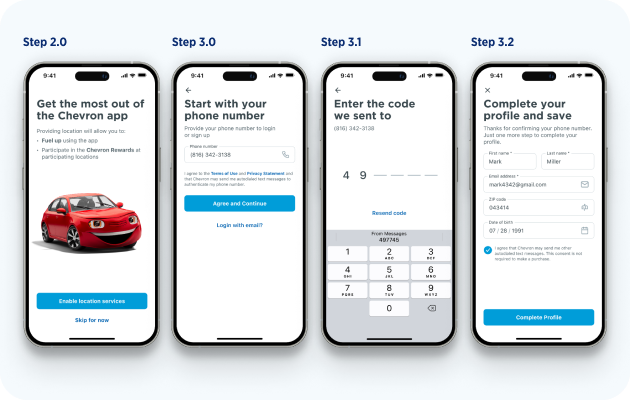
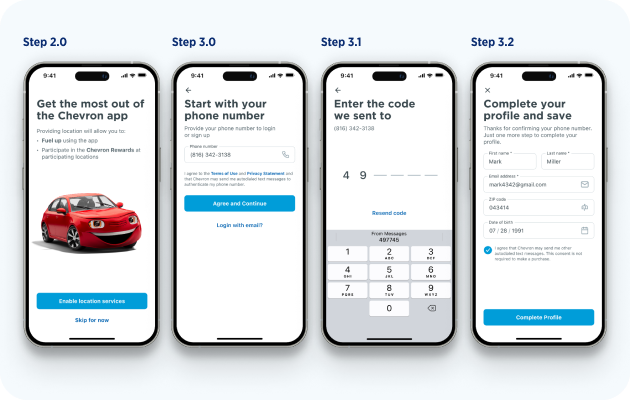
How to create an account

  1. Download the Chevron or Texaco App from the App Store or Google Play.
  2. Enable Location Services

    • Upon launching the app, Enable location services.

    • Enabling location services is required to use the Station Locator map and to Fuel Up.

  3. Create a User Account

    • Enter your mobile phone number.

    • Enter the One-Time Password code sent to your phone.

    • Complete your profile.

How to create an account How to create an account
How to add a payment method How to add a payment method

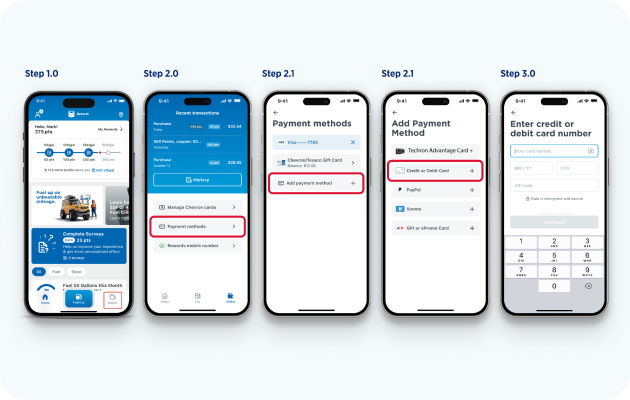
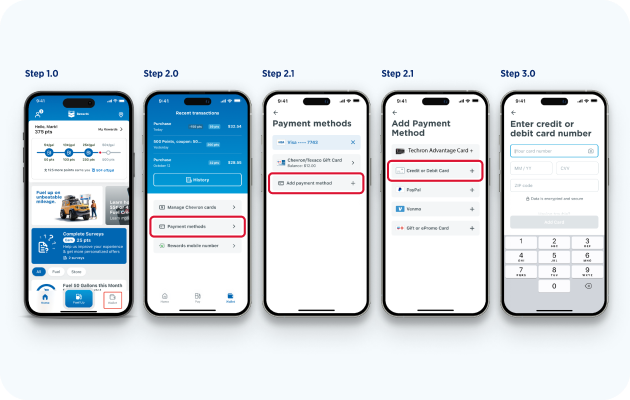
How to add a payment method

  1. Select Wallet from the main navigation, then select
Payment methods.
  2. Select Add Payment Method and select the type of payment you wish to add.
  3. Enter the card information.

    • Techron Advantage cardholders will receive a phone call
or SMS text with a verification code to enter to validate.

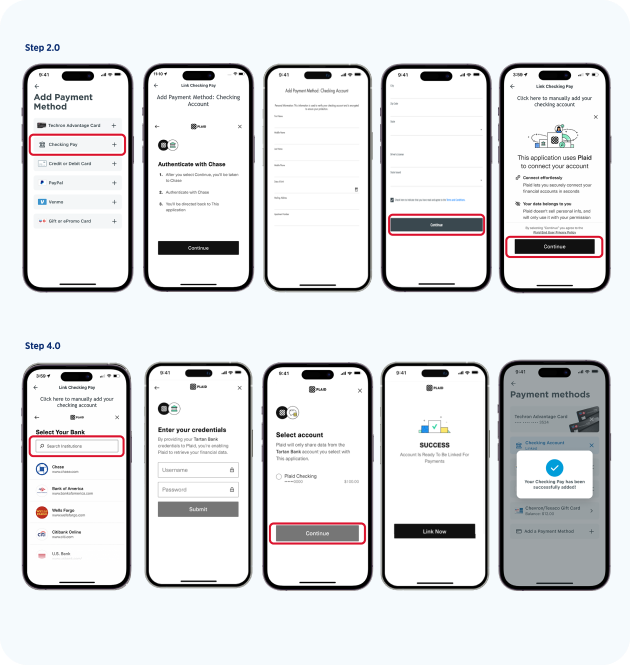
How to add a checking account

  1. From the Wallet and Add Payment Method, 
select Checking Pay™
  2. You will be directed to a third-party site to enter your personal information and accept the Terms and Conditions.
  3. Select Your Bank and enter your login credentials and follow the prompts to securely link your checking account to your User Account on the mobile app.

    • Note: Your financial institution may require multi-factor authentication.

  4. You will receive confirmation that the connection was successfully linked. You can now use Checking Pay as a payment method.

    Important:

    • You also have the option to enter your account information (checking and routing numbers) manually.

    • You will see a credit and debit posted to your checking account to verify your information.

    • Once your account has been linked during the set-up process, transactions will process without the need for further verification.

    • If you have any issues with creating the account connection, contact CheckingPay@bimnetworks.com or (888) 823-2483


How to add a checking account How to add a checking account
How to add a gift card How to add a gift card

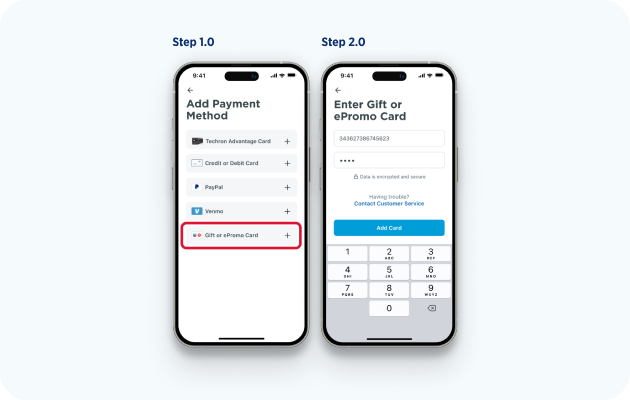
How to add a gift card

  1. From the Wallet and Add Payment Method, select Gift 
or ePromo Card.
  2. Enter the gift card number and the gift card PIN instead of 
the app security PIN.

    • Gift cards must be entered into the app manually and 
cannot be purchased or reloaded from the app.

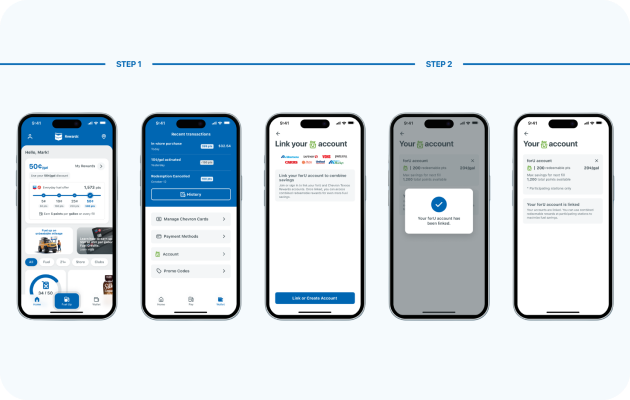
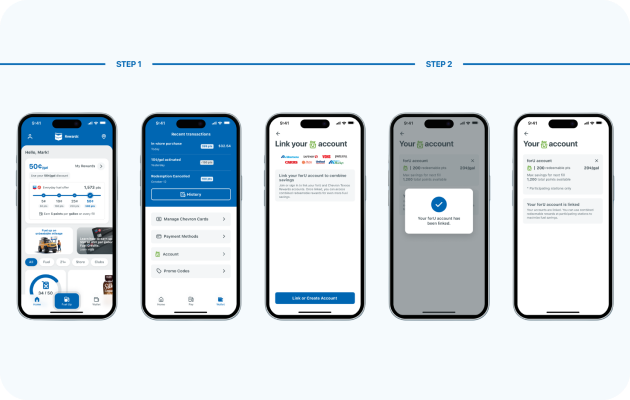
How to link forU rewards account

  1. From the Wallet select forU Account.
  2. Click Link or Create Account.
  3. Your forU account has been linked.

    • Combine forU Rewards with the Chevron Texaco Rewards program rewards up to the maximum allowed under each program.

    • Follow the instructions on the pump screen to redeem combined rewards.

How to add a grocery reward How to add a grocery reward
How to fuel up via the app How to fuel up via the app

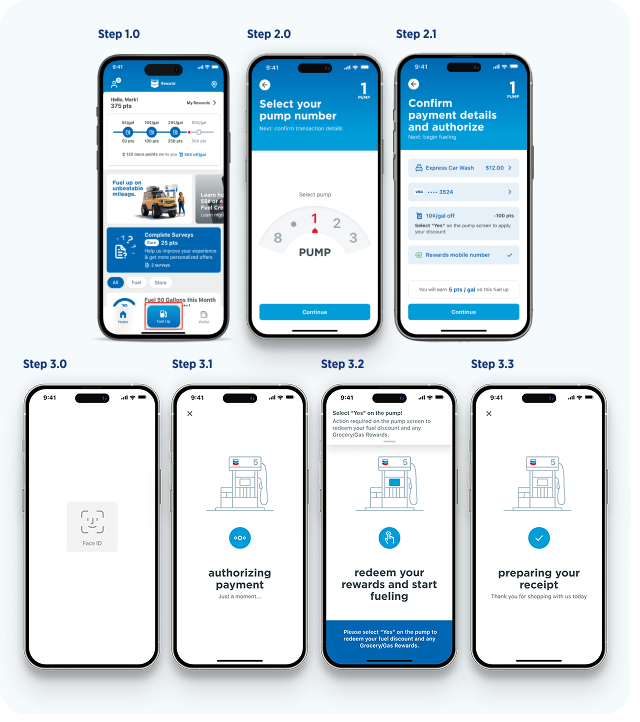
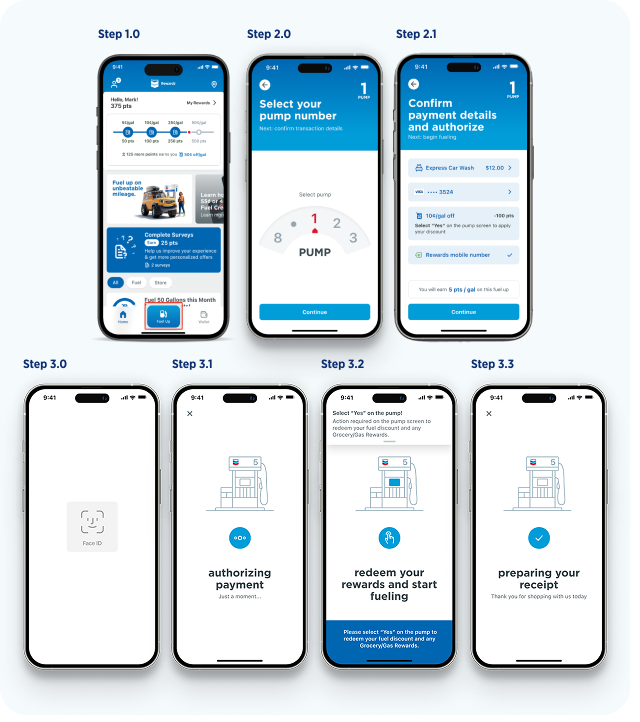
How to fuel up via the app

  1. To fuel up via the app, Location Services must be enabled.

    • When you arrive at a participating station, the Fuel Up button becomes active in the Main Navigation

  2. Press Fuel Up to be prompted to select your pump number.

    • On the Confirm screen, you can add a car wash and 
select method of payment.

  3. Authorize payment via PIN or biometrics, and then the 
pump is ready to fuel up.

    • To redeem rewards, select YES on with the pump screen 
to apply a fuel discount.

    •  A digital receipt is available in the app.


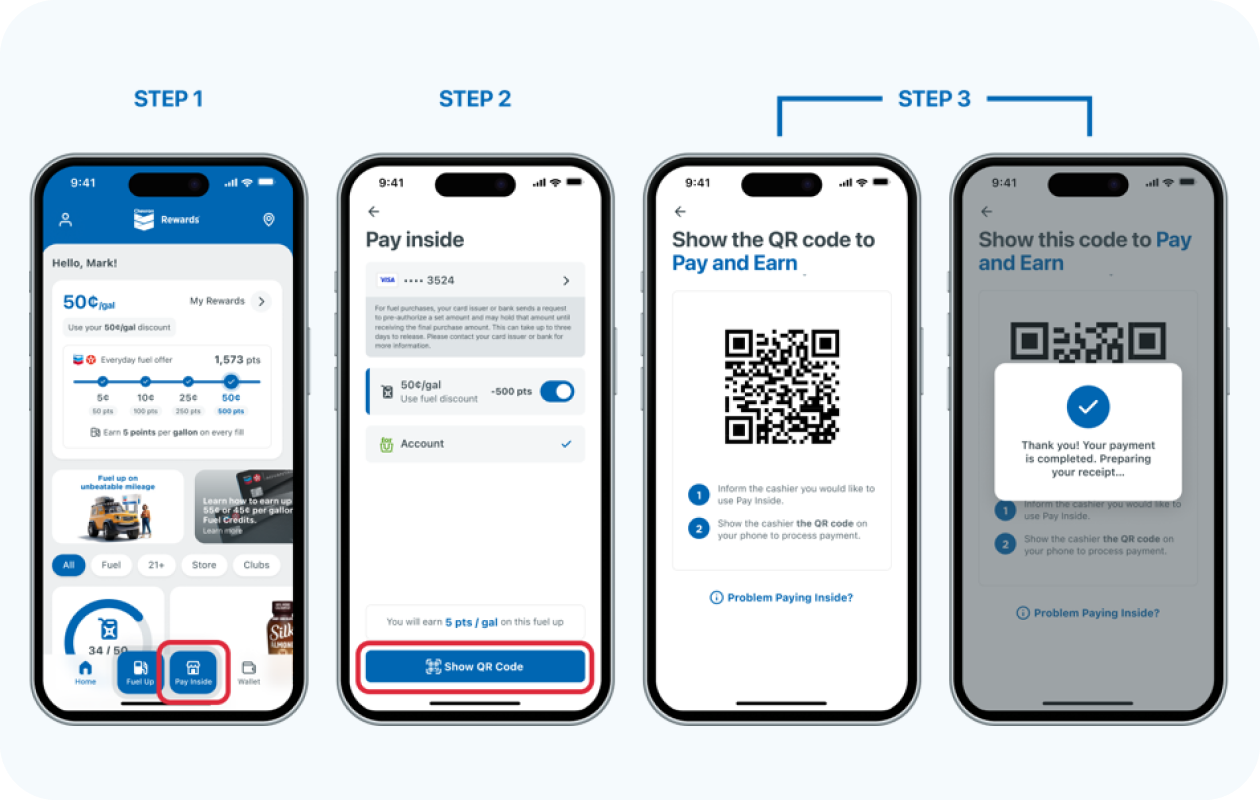
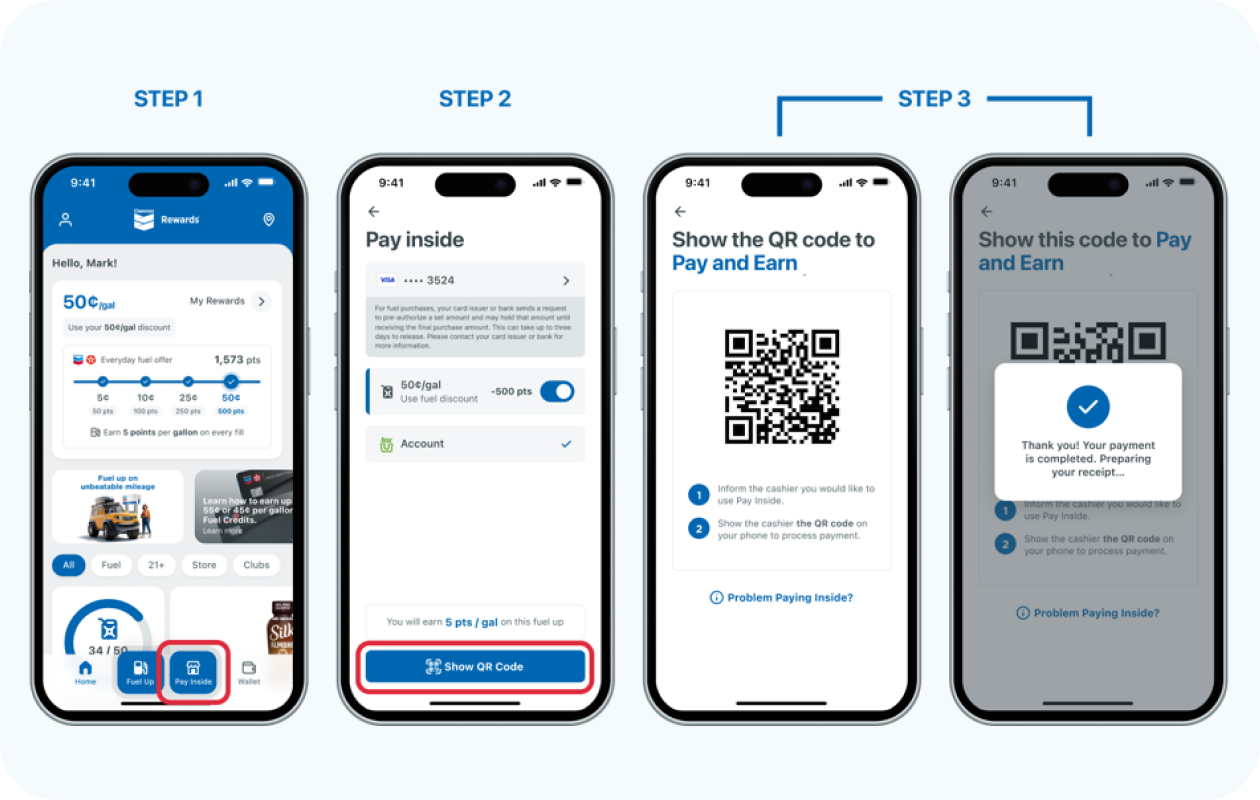
How to pay inside with the mobile app

  1. From the main navigation, click Pay Inside.
  2. Select Payment Method.

    • Click Show QR Code.

    • When prompted to select a loyalty program on the PIN pad, select No.

  3. Present the QR code to the cashier and ask the cashier to scan the QR code on your mobile phone.

    • Your available rewards will be ready to redeem.

    • Complete your payment in the app.


    Important information

    • The Pay Inside feature on the Chevron and Texaco apps is available at select Chevron Texaco Rewards station locations

    • If you use the QR code for payment only, you will need to select a loyalty program by selecting Yes (on Step 2.2) and input your Account phone number on the PIN pad to earn and redeem rewards.

    • Apple Pay and Samsung Pay are not supported through the Pay Inside feature at this time.

    • The Pay Inside functionality is not the same as using your device for "tap to pay" via NFC technology.

How to pay inside with the mobile app How to pay inside with the mobile app
Watch app installation Watch app installation

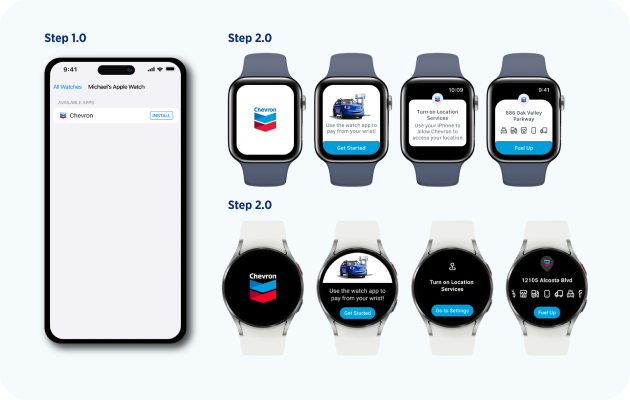
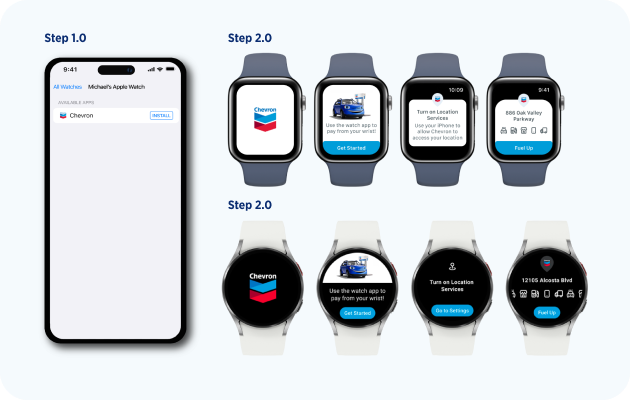
Watch app installation

  1. Chevron Texaco Rewards members can install the watch 
app on their Apple Watch or Wear OS by Google™

    • Chevron or Texaco Apple Watch apps can be downloaded on the App Store.

    • Chevron or Texaco Wear OS by Google™ apps can be downloaded on Google Play

    • Your phone app must be logged in.

  2. To fuel up, follow the prompts on your watch.

CarPlay and Android Auto app installation

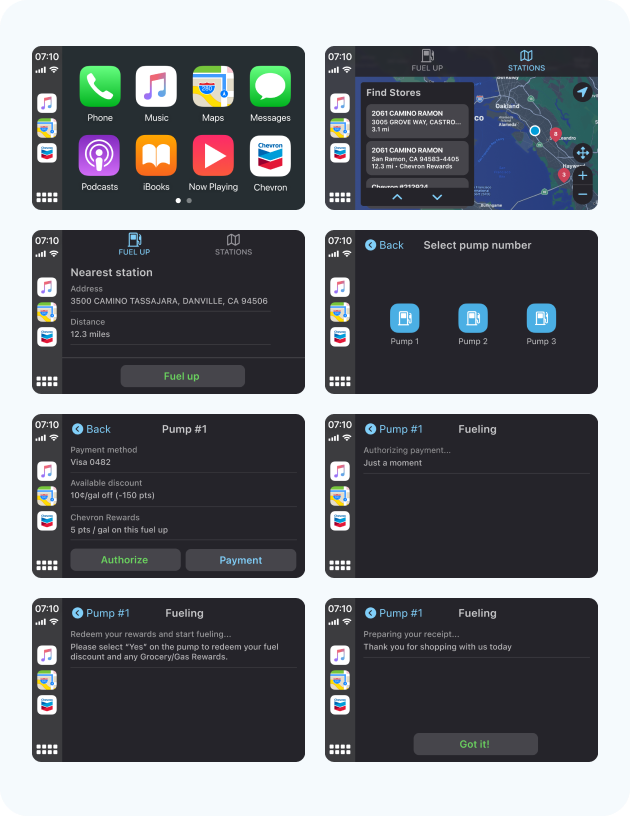
  1. Apple CarPlay™ and Android Auto supported vehicles can use the Chevron and Texaco apps from the vehicle dashboard.

    • A supported payment method must be linked in the app (Apple and Google Pay not supported), and the phone app must be logged in.

    • iPhones must be on iOS 16 or later.

    • Visit Apple’s or Android’s official support center for
vehicle app steps.

  2. To fuel up, open the Chevron or Texaco app and follow the prompts on the Apple CarPlay™ or Android Auto interface.

    • Illustrations are shown for CarPlay example only.


CarPlay and Android Auto app installation CarPlay and Android Auto app installation
Chevron and Texaco apps and rewards program Chevron and Texaco apps and rewards program

Chevron and Texaco apps and rewards program

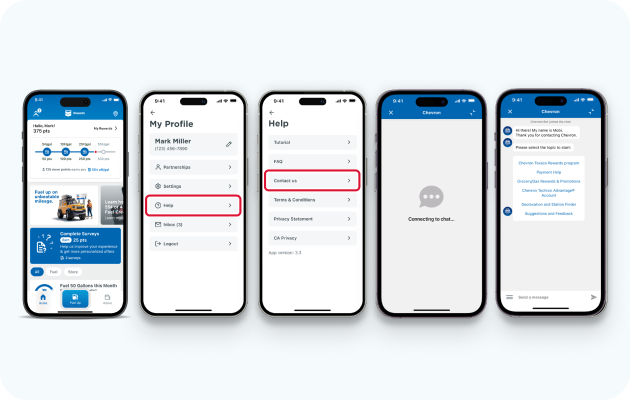
For more help, contact the Consumer Connection Center through the app or call directly at 1-855-285-9595. Available Mon-Friday 7AM-7PM CST.

• Press the Profile icon in the upper left of the Home screen.

• Go to Help.

• Go to Contact us and follow the prompts.

Any other questions? We'd love to hear from you!